SystemMenu
|
Size: 3195
Comment: + bug 1116497 (Can't configure visibility of my name in the menu bar)
|
Size: 4611
Comment: clarify that Restart and Shut Down should be offered inside the installer
|
| Deletions are marked like this. | Additions are marked like this. |
| Line 1: | Line 1: |
| ||<tablestyle="float:right;margin:0 0 1em 1em;" style="border:none;">{{attachment:system-menu.png}}|| |
|
| Line 3: | Line 5: |
| ||<tablestyle="float:right;margin:0 0 1em 1em;" style="border:none;">{{attachment:system-menu.png}}|| | == Presence == The menu should not be present at all in the standalone installer session. Memory for launching other programs (System Settings and Help) may be at a premium, there are no user accounts to switch to, resuming from suspend is not possible, and restart/shutdown are potentially highly destructive and so are better explained inside the installer. |
| Line 7: | Line 11: |
| For now, the title of the menu should be the powercog icon (we may change this to the Ubuntu icon), with the accessible label “System”. These should be followed by your login name if you have [[#title-setting|chosen that]]. | <<Anchor(title-setting)>> {{attachment:settings.png}} |
| Line 9: | Line 14: |
| == Admin items == | In [[UserAccounts|the System Settings “User Accounts” panel]], at the bottom of the “Name & Picture” tab for your own account should be a checkbox, “Show my login name in the menu bar”, that is unchecked by default for a new user account and for the live session user (bug Bug:1116497). (This setting should not be in the menu itself because, unlike with the short [[Power#menu|battery menu]], it would clutter an already-extensive menu.) If this checkbox is checked, the title of the menu should be the powercog icon followed by your login name, with your login name as the accessible label. Otherwise, the title of the menu should be the powercog icon alone, with the accessible label “System”. == Contents == Depending on the type of session, the menu should contain up to three sections: admin items, the account-switching items, and/or session items. If two consecutive sections are present, they should have a separator between them. === Admin items === This section should not be present at the login screen. |
| Line 15: | Line 30: |
| And after a separator, “System Settings…” should open or focus System Settings. | And after an extra separator, “System Settings…” should open or focus System Settings. |
| Line 17: | Line 32: |
| These three items should not appear in the menu when at the login screen, but all the following items should. == Account-switching items == |
=== Account-switching items === |
| Line 22: | Line 35: |
| * If you are using a live session, it should be “Start Screen Saver” (because you can’t lock the session, and there are no other accounts to switch to). * Otherwise, if you are using a guest session, it should be “Switch Account…” (because you can’t lock the guest session). * Otherwise, if the system has only one user account (not counting the guest session), it should be “Lock”. |
* At the login screen, it should be “Start Screen Saver” (because there is no session to lock). * In a live session, it should be “Start Screen Saver” (because you can’t lock the session, and there are no other accounts to switch to). * In a guest session, it should be “Switch Account…” (because you can’t lock the guest session). * If the system has only one user account (not counting the guest session), it should be “Lock” (because there are no other accounts to switch to). |
| Line 29: | Line 43: |
| This should be followed by a “Guest Session” item (if the system allows it), and radio items for up to 12 of the user accounts on the system. (If there are more, you can get to them from the lock screen.) | The rest of this section should not be present at the login screen. Next should be a “Guest Session” item (if the system allows it), and radio items for up to 12 of the user accounts on the system. (If there are more, you can get to them from the lock screen.) |
| Line 33: | Line 49: |
| == Session items == | === Session items === |
| Line 35: | Line 51: |
| The menu should end with other items for when you want to stop using the computer: “Log Out…” (except in a live session), “Suspend” (if [[Power#settings|enabled on this computer]]), “Hibernate” (if [[Power#settings|enabled on this computer]]), “Restart…”, and “Switch Off…”. (Eventually “Suspend” and “Hibernate” will be merged into “Sleep”.) | The menu should end with other items for when you want to stop using the computer: “Log Out…” (not included at the login screen), “Suspend” (if [[Power#settings|enabled on this computer]]), “Hibernate” (if [[Power#settings|enabled on this computer]]), “Restart…”, and “Shut Down…”. (Eventually “Suspend” and “Hibernate” will be merged into “Sleep”.) |
| Line 37: | Line 53: |
| <<Anchor(title-setting)>> == Setting for showing the name in the menu title == |
== Session variations == |
| Line 40: | Line 55: |
| {{attachment:settings.png}} | ''This is a summary only; the specifications of individual items are authoritative.'' |
| Line 42: | Line 57: |
| In the System Settings “User Accounts” panel, at the bottom of the pane for your own account should be a checkbox, “Show my login name in the menu bar”, that is unchecked by default for a new user account (bug Bug:1116497). (This setting should not be in the menu itself because, unlike with the short [[Power#menu|battery menu]], it would clutter an already-extensive menu.) | * In the '''guest session''', the menu should be identical to the normal session. * In the '''live session''', the menu should be the same, except that “Start Screen Saver” should be the only account-switching item present (because there are no accounts to switch to). * In the '''installer session''', [[#Presence|the menu should not be present at all]]. * At the '''login screen''', the menu should contain at most “Suspend”, “Hibernate”, “Restart…”, and “Shut Down…”. |
|
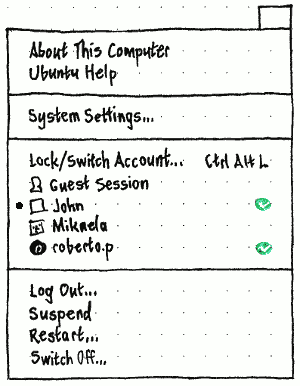
The trailing end of the menu bar should have a system menu, containing items for “About This Computer”, “Ubuntu Help”, “System Settings”, switching user accounts (if applicable), and exiting the Ubuntu session.
Presence
The menu should not be present at all in the standalone installer session. Memory for launching other programs (System Settings and Help) may be at a premium, there are no user accounts to switch to, resuming from suspend is not possible, and restart/shutdown are potentially highly destructive and so are better explained inside the installer.
Title

In the System Settings “User Accounts” panel, at the bottom of the “Name & Picture” tab for your own account should be a checkbox, “Show my login name in the menu bar”, that is unchecked by default for a new user account and for the live session user (bug 1116497). (This setting should not be in the menu itself because, unlike with the short battery menu, it would clutter an already-extensive menu.)
If this checkbox is checked, the title of the menu should be the powercog icon followed by your login name, with your login name as the accessible label. Otherwise, the title of the menu should be the powercog icon alone, with the accessible label “System”.
Contents
Depending on the type of session, the menu should contain up to three sections: admin items, the account-switching items, and/or session items. If two consecutive sections are present, they should have a separator between them.
Admin items
This section should not be present at the login screen.
“About This Computer” should open or focus the “Overview” pane of the “Details” panel of System Settings.
“Ubuntu Help” should open or focus the Ubuntu Help window.
And after an extra separator, “System Settings…” should open or focus System Settings.
Account-switching items
The first item in this section should depend on the situation:
- At the login screen, it should be “Start Screen Saver” (because there is no session to lock).
- In a live session, it should be “Start Screen Saver” (because you can’t lock the session, and there are no other accounts to switch to).
- In a guest session, it should be “Switch Account…” (because you can’t lock the guest session).
- If the system has only one user account (not counting the guest session), it should be “Lock” (because there are no other accounts to switch to).
- Otherwise, it should be “Lock/Switch Account…”.
In all cases, the item should have the keyboard combo Ctrl Alt L. In the last three cases, activating it should show the login screen.
The rest of this section should not be present at the login screen.
Next should be a “Guest Session” item (if the system allows it), and radio items for up to 12 of the user accounts on the system. (If there are more, you can get to them from the lock screen.)
Each account item should consist of its account picture and its name — full name if it is present and visibly unique, otherwise login name, either ellipsized to 50 characters if necessary. The session you are currently using should have the radio mark, and any sessions currently logged in (including your own) should have a custom checkmark graphic at the trailing end.
Session items
The menu should end with other items for when you want to stop using the computer: “Log Out…” (not included at the login screen), “Suspend” (if enabled on this computer), “Hibernate” (if enabled on this computer), “Restart…”, and “Shut Down…”. (Eventually “Suspend” and “Hibernate” will be merged into “Sleep”.)
Session variations
This is a summary only; the specifications of individual items are authoritative.
In the guest session, the menu should be identical to the normal session.
In the live session, the menu should be the same, except that “Start Screen Saver” should be the only account-switching item present (because there are no accounts to switch to).
In the installer session, the menu should not be present at all.
At the login screen, the menu should contain at most “Suspend”, “Hibernate”, “Restart…”, and “Shut Down…”.
SystemMenu (last edited 2014-02-11 15:39:26 by mpt)