InstallationExample
|
⇤ ← Revision 1 as of 2011-11-17 17:16:23
Size: 4061
Comment: Initial creation
|
Size: 4131
Comment: Added images
|
| Deletions are marked like this. | Additions are marked like this. |
| Line 5: | Line 5: |
| === Installation Walkthrough === ==== 1. Boot ==== |
=== 1. Boot === |
| Line 11: | Line 10: |
| ==== 2. Create filesystems ==== | === 2. Create filesystems === |
| Line 14: | Line 13: |
| {1} Image | {{attachment:1 - palimpsest.png}} |
| Line 20: | Line 19: |
| {1} Image | {{attachment:2 - boot.png}} |
| Line 24: | Line 23: |
| {1} Image | {{attachment:3 - root.png}} |
| Line 26: | Line 25: |
| ==== 3. Mount filesystems ==== | === 3. Mount filesystems === |
| Line 35: | Line 34: |
| ==== 4. Create the root filesystem ==== | === 4. Create the root filesystem === |
| Line 43: | Line 42: |
| ==== 5. Download kernel ==== | === 5. Download kernel === |
| Line 51: | Line 50: |
| ==== 6. Install the kernel ==== | === 6. Install the kernel === |
| Line 65: | Line 64: |
| {1} Image | {{attachment:4 - dpkg.png}} |
| Line 67: | Line 66: |
| ==== 7. Configure target environment ==== | === 7. Configure target environment === |
| Line 81: | Line 80: |
| ==== 8. Copy the necessary boot files to the boot partition ==== | === 8. Copy the necessary boot files to the boot partition === |
| Line 91: | Line 90: |
| ==== 9. Install the bootloader ==== | === 9. Install the bootloader === |
| Line 97: | Line 96: |
| ==== 10. Configure the bootloader ==== | === 10. Configure the bootloader === |
| Line 115: | Line 114: |
| Line 116: | Line 116: |
| {1} Image | |
| Line 118: | Line 117: |
| ==== 11. Reboot ==== | {{attachment:5 - syslinux.png}} === 11. Reboot === |
| Line 120: | Line 121: |
| {1} Image | {{attachment:6 - booted.png}} |
Installation of Ubuntu Core
The following is an example deployment of Ubuntu Core in an x86 virtual machine. Please note that these instructions are meant to use as a guide for getting started and are not necessarily suited for deployment in a production system.
1. Boot
Boot the target hardware from an Ubuntu Live CD. For this example I used the 32-bit Ubuntu 11.10 Desktop CD, but the version used does not matter as this is used only as a working environment to prepare the target system.
During the boot process you will be prompted to install or try Ubuntu. Select the "Try Ubuntu" option.
2. Create filesystems
Create two filesystems on the disk of the target device, one for boot purposes and one to hold the Ubuntu Core filesystem. For this example I used the graphical disk utility that is included on the Ubuntu 11.10 Desktop CD:
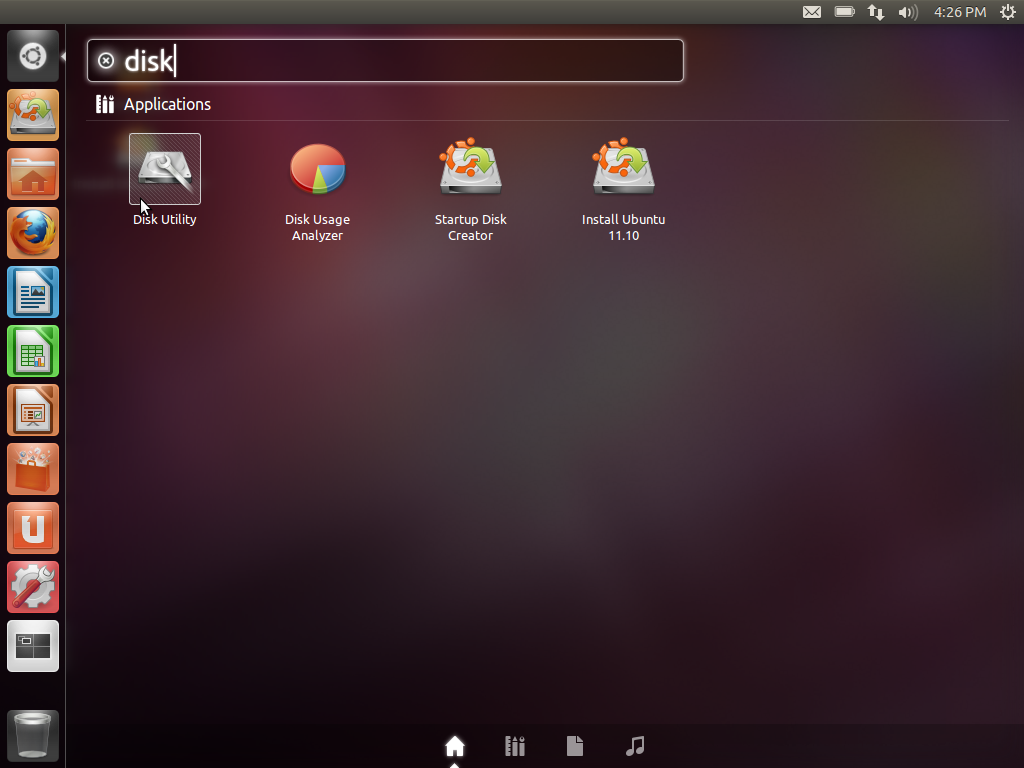
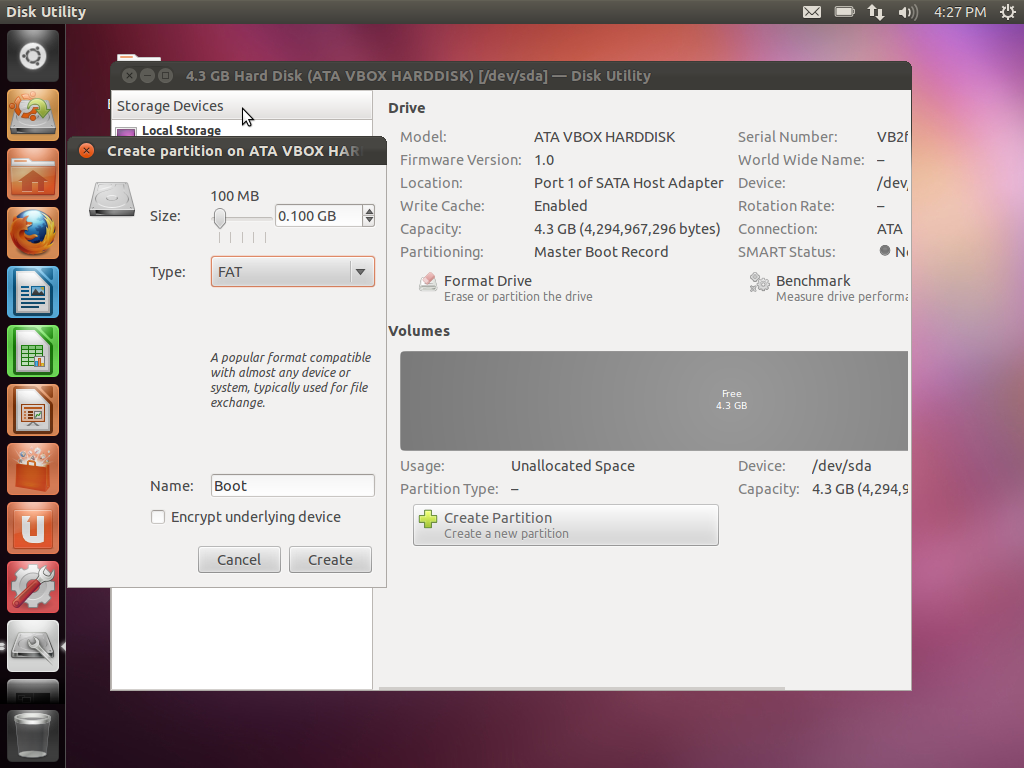
The first filesystem will be the "boot" filesystem. This should be created at the beginning of the disk as a FAT filesystem. This filesystem will not need much space, as it will hold only the kernel and initrd. (I used 100MB in this example but smaller filesystems are certainly possible.)
 You must mark this filesystem as bootable after creating it by clicking "Edit partition" and checking the "Bootable" checkbox.
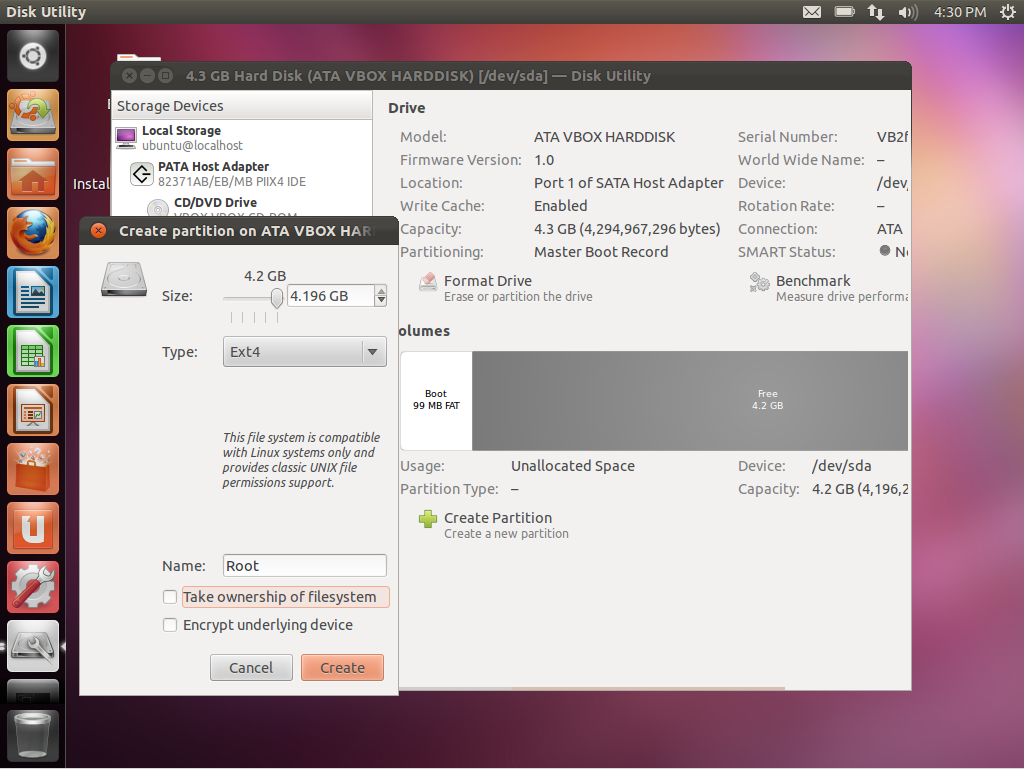
The second filesystem will be the Ubuntu Core root filesystem. This should be one of EXT2, EXT3, or EXT4 and take the remainder of the available space.
3. Mount filesystems
Mount the filesystems you have created so that they will be accessible. E.g.
$ sudo mkdir /mnt/boot /mnt/root
$ sudo mount /dev/sda1 /mnt/boot
$ sudo mount /dev/sda2 /mnt/root
4. Create the root filesystem
You will need to have the Ubuntu Core root filesystem in an accessible path.
$ cd /mnt/root
$ sudo tar zxvf $path_to_root_fs
5. Download kernel
Download an appropriate kernel (and any dependencies). Packages can be found at packages.ubuntu.com. For this example I chose a 12.04 "Precise Pangolin" development kernel, which required the 'wireless-crda' package.
Copy the kernel and any dependencies to the target root filesystem, e.g.
cp $path_to_kernel/*deb /mnt/root/tmp
6. Install the kernel
Open a chroot session into the target root filesystem. This will allow you to install packages and configure the target system before it is bootable.
$ sudo chroot /mnt/root
Install the kernel:
# dpkg -i /tmp/$dependencies
# dpkg -i /tmp/$kernel
For example:

7. Configure target environment
Create a user account in the target environment, and then perform any other required pre-boot configuration you may need.
# useradd ubuntu
# passwd ubuntu
When you are finished, exit the chroot session.
# exit
8. Copy the necessary boot files to the boot partition
Copy the kernel and initrd to the boot partition.
$ cd /mnt/boot
$ sudo cp ../root/boot/vmlinuz* .
$ sudo cp ../root/boot/initrd* .
Make a note of the filenames of the kernel (vmlinuz) and initrd.
9. Install the bootloader
Install the syslinux bootloader to the boot filesystem.
$ sudo syslinux -i /dev/sda1
10. Configure the bootloader
Create a syslinux configuration file pointing at the kernel (vmlinuz) and initrd.
$ cd /mnt/boot
$ sudo nano syslinux.cfg
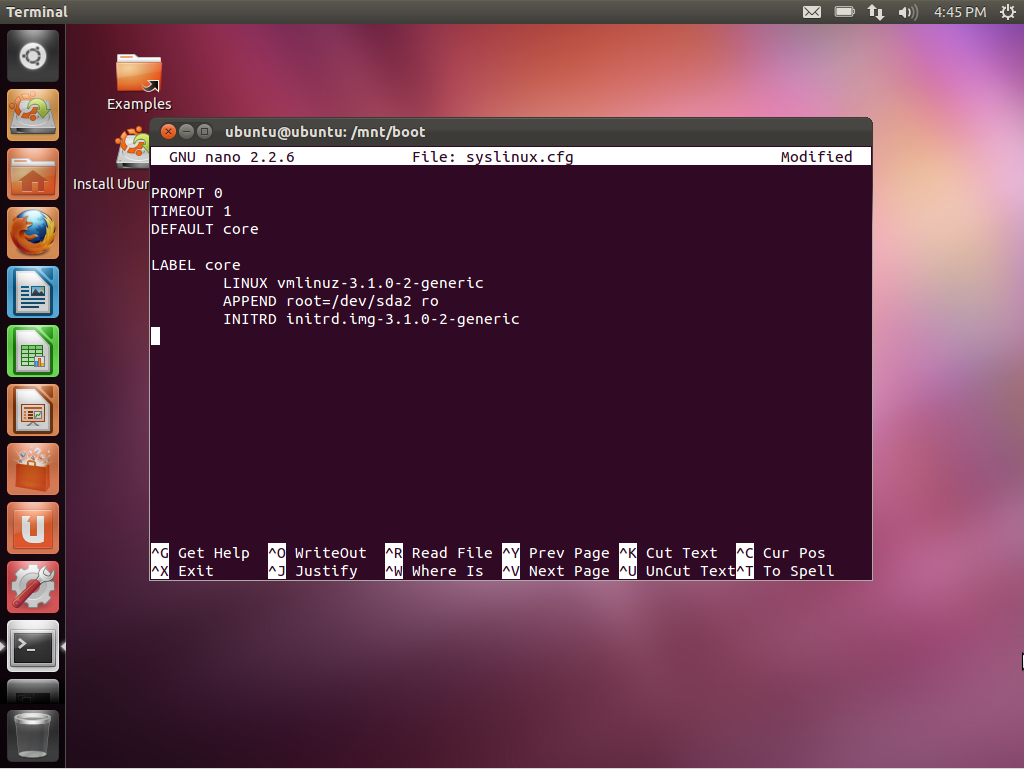
This configuration file will look something like this:
PROMPT 0
TIMEOUT 1
DEFAULT core

LABEL core
        LINUX $vmlinuz
        APPEND root=/dev/sda2 ro
        INITRD $initrd
Be sure to replace $vmlinuz with the name of your kernel and $initrd with the name of your initrd. E.g.:
11. Reboot
Shut down your target system and remove the CD (or other temporary boot media). Start your target system and enjoy Ubuntu Core!

Base/InstallationExample (last edited 2016-07-21 14:04:27 by adconrad)