SideBySide
Differences between revisions 1 and 7 (spanning 6 versions)
|
Size: 52
Comment: Created the page.
|
← Revision 7 as of 2015-10-09 03:26:57 ⇥
Size: 1474
Comment: I added link of Korean page
|
| Deletions are marked like this. | Additions are marked like this. |
| Line 1: | Line 1: |
| Describe UbuntuGNOME/Installation/SideBySide here. | <<Include(UbuntuGNOME/Header)>> <<BR>> ||<tablestyle="width: 95%; margin: 5px 0;" style="border: none; border-radius: 10px; background-color: #b7d1ea; font-size: 0.90em;" :> '''[[https://wiki.ubuntu.com/UbuntuGNOME/Installation | Go back to Installation Page]]''' || <<BR>> || [[https://wiki.ubuntu.com/UbuntuGNOME/Installation/SideBySide/Greek| Ελληνικά]] || [[https://wiki.ubuntu.com/UbuntuGNOME/Installation/SideBySide/Korean| 한국어]] || <<BR>> = Side by Side Installation of Ubuntu GNOME = * Choose '''Install Ubuntu GNOME''' {{attachment:install.png}} ---- * It's recommended to select both optional boxes here if you want the most up to date and functional system possible. If you don't have an Internet connection though, don't worry about not being able to update yet. {{attachment:prepare.png}} ---- * Select '''Install Ubuntu GNOME 13.10 alongside''' ''existing operating system'' (i.e. Windows, Mac) {{attachment:type.png}} ---- * Choose the size of the partition for your new Ubuntu GNOME installation. Your '''existing''' OS will always be the slot on the '''left'''. {{attachment:partition.png}} ---- * Once you are sure that the size you picked for your partition is the size you want, select '''Continue'''. This will take a while, but after this step all you need to do is follow the simple informational prompts. {{attachment:continue.png}} ---- '''''Thank you for choosing and using Ubuntu GNOME.''''' |


Side by Side Installation of Ubuntu GNOME
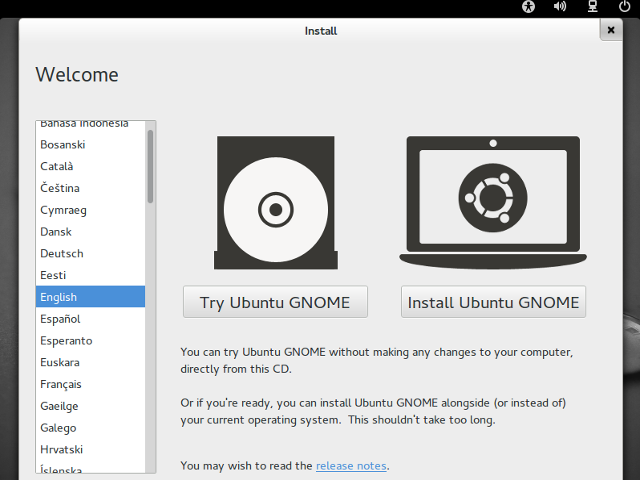
Choose Install Ubuntu GNOME
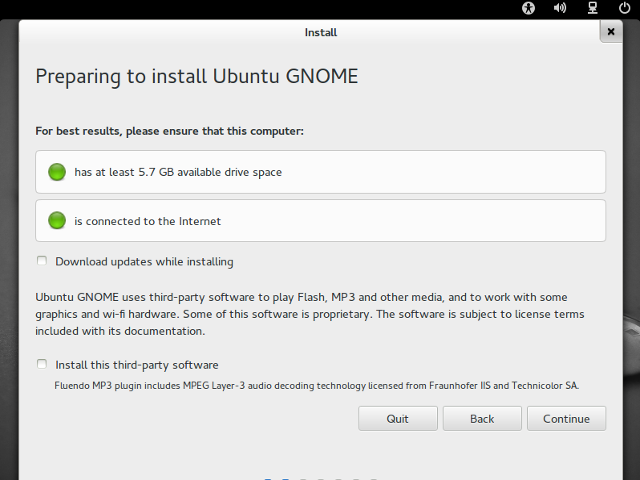
- It's recommended to select both optional boxes here if you want the most up to date and functional system possible. If you don't have an Internet connection though, don't worry about not being able to update yet.
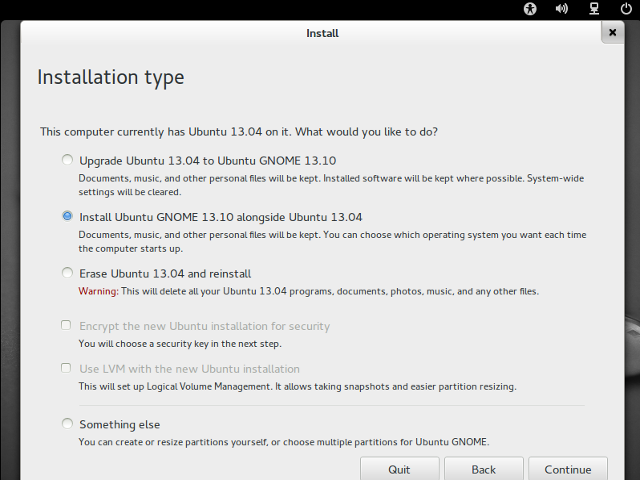
Select Install Ubuntu GNOME 13.10 alongside existing operating system (i.e. Windows, Mac)
Choose the size of the partition for your new Ubuntu GNOME installation. Your existing OS will always be the slot on the left.
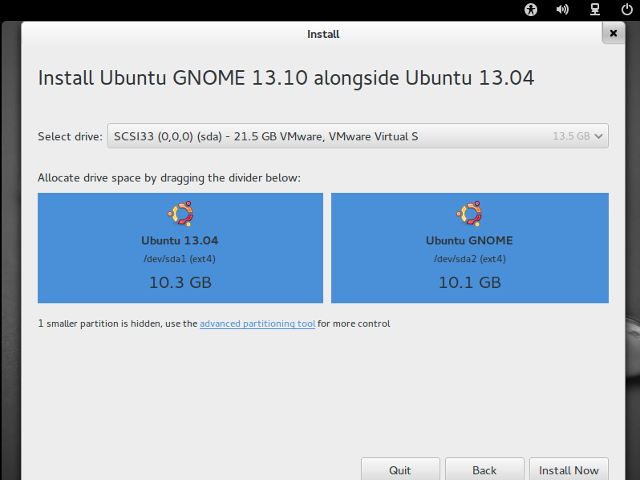
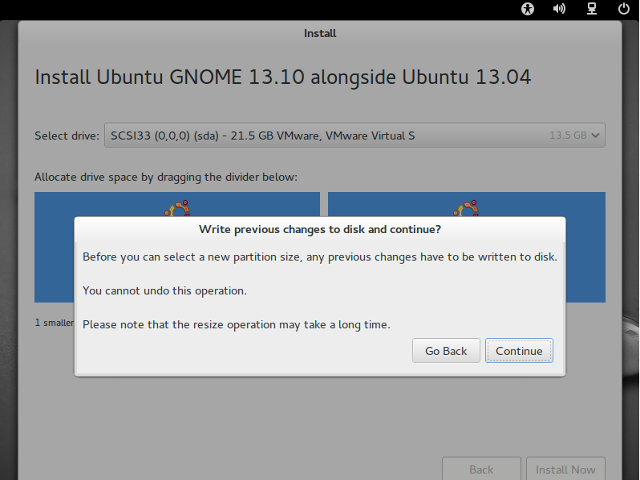
Once you are sure that the size you picked for your partition is the size you want, select Continue. This will take a while, but after this step all you need to do is follow the simple informational prompts.
Thank you for choosing and using Ubuntu GNOME.
UbuntuGNOME/Installation/SideBySide (last edited 2015-10-09 03:26:57 by 220)